Transform Tasks define the intrabound movement of data (within the lakehouse) to transform the data into usable information for your business.
Empower's model building technology takes care of orchestration and parallelization for you. All you have to define as a user is the logic to transform your data, defined in SQL statements within staging notebooks.
Modeling is the process of manipulating raw data in the Lakehouse into a processed, analytics-ready model. Empower's model building technology takes care of orchestration and parallelization for you. All you have to configure Transformation Tasks and define the transformation logic, as defined in SQL statements within staging notebooks.
Learn more about setting up and managing your Models →
📘 Quick Links
This page covers Transformation Task creation and modification.
- Logging and Monitoring: defines how to use the log page to monitor tasks ("View Runs").
- Schedules and Triggers: describes how to trigger tasks to run on demand ("Preview Run") and schedule tasks to run on a repeating cadence ("Schedule").
- Staging Data Transformation with Notebooks: learn how use notebooks to stage data transformations for model building.
Overview
The Transform module is accessible from the left navigation menu.
From this screen, you can view all Transformation tasks within your chosen environment.
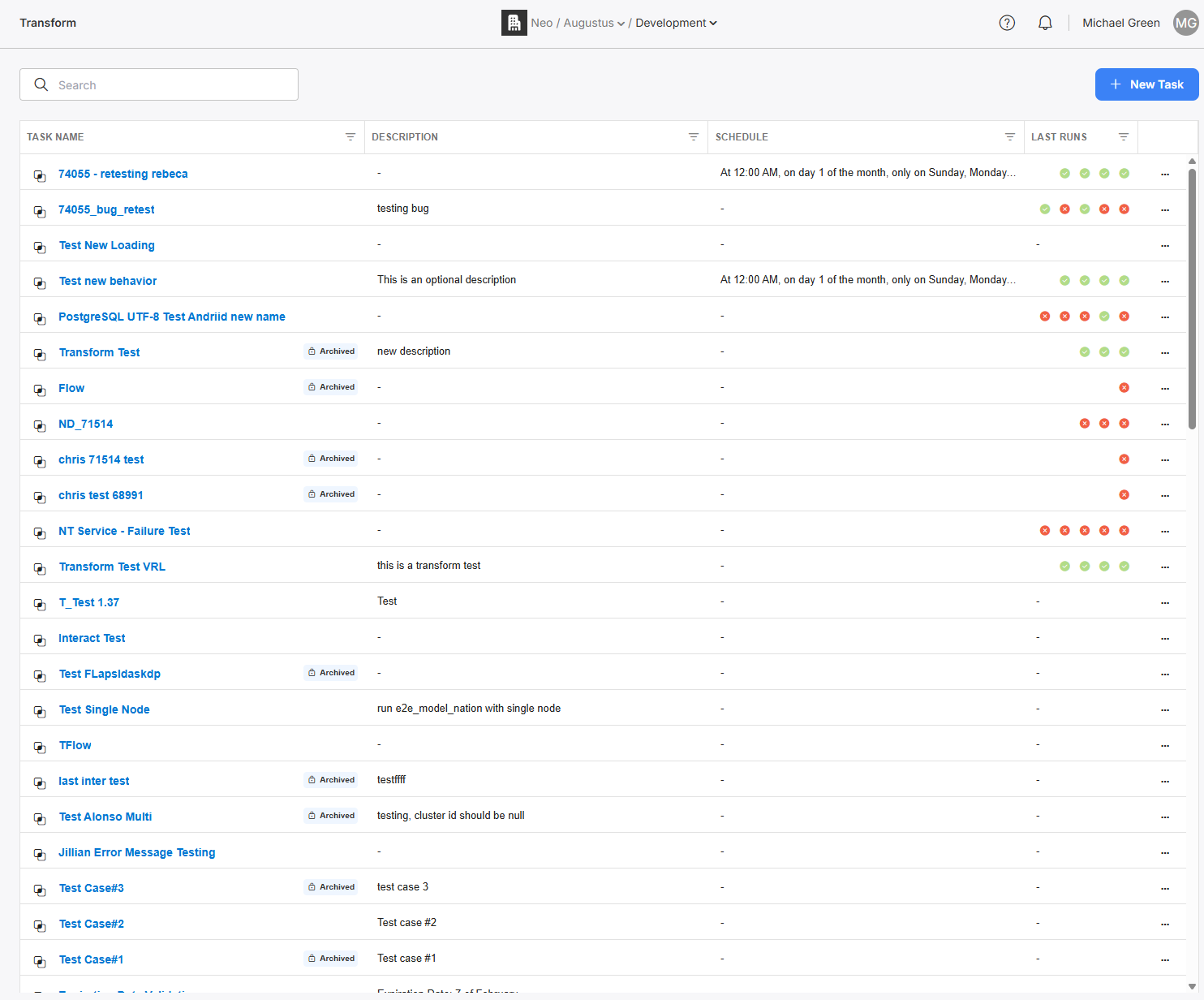
You can search these tasks by name, view configurations or historical run logs, trigger a task to run on demand, view/set/activate scheduling, and create new tasks. You can also navigate to the Models tab for data model management.
Creation
Creating a Transformation Task can be done by simply clicking on "+" at the top of the screen when on the Task tab.

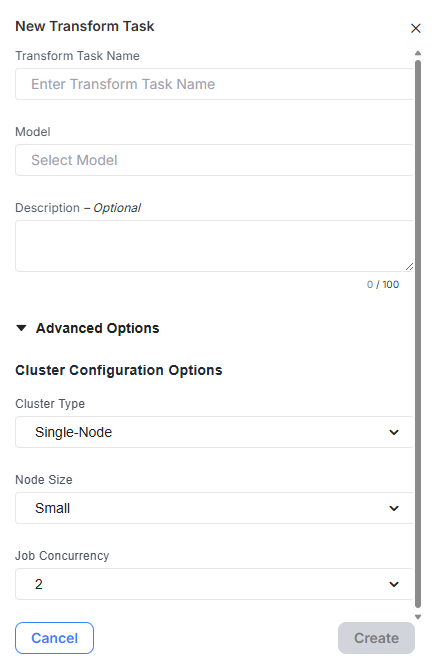
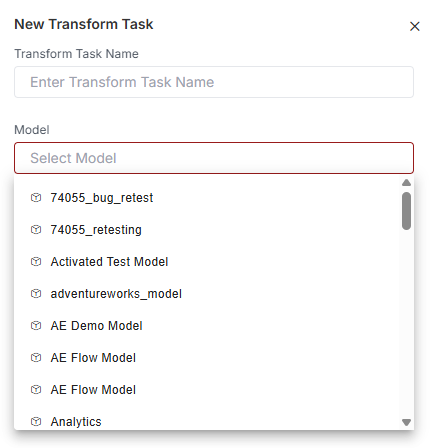
Clicking into the the model field will automatically populate a dropdown list with all existing models. Keep typing to filter this list to the model you want to use.
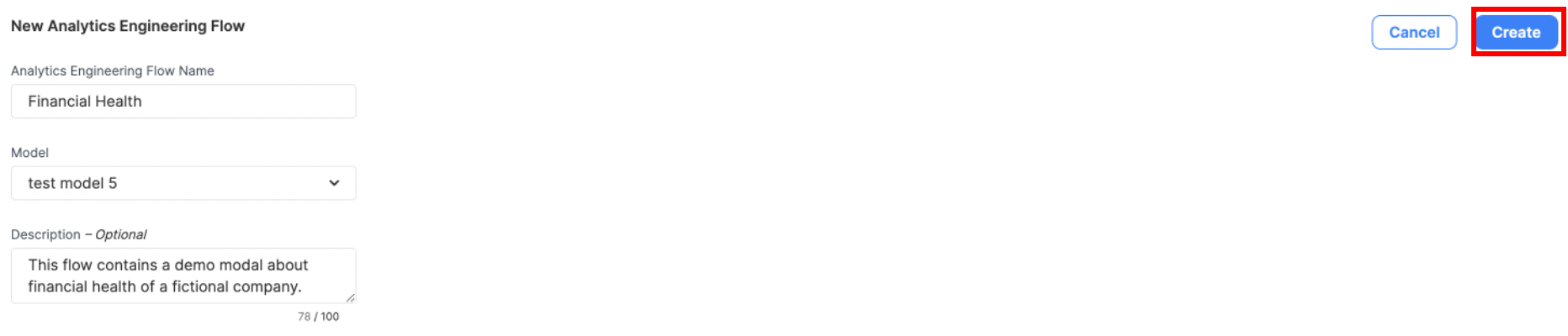
You can now see your newly created task at the top of the page.

ℹ️ 1 to Many - Models and Transformation Tasks
Models and Transformation tasks have a 1:many relationship.
This means that a single Transformation Task can only ever be associated with one model at any moment in time. However, a specific model may be associated with many different Transformation Task, all with different schedules (or even no schedule at all!).
As an addendum, you will not be able to change an Transformation Task's selected model post-creation.
Editing
Clicking on the name of a Task will bring you to the Task tab view as shown below with the Overview tab selected by default.
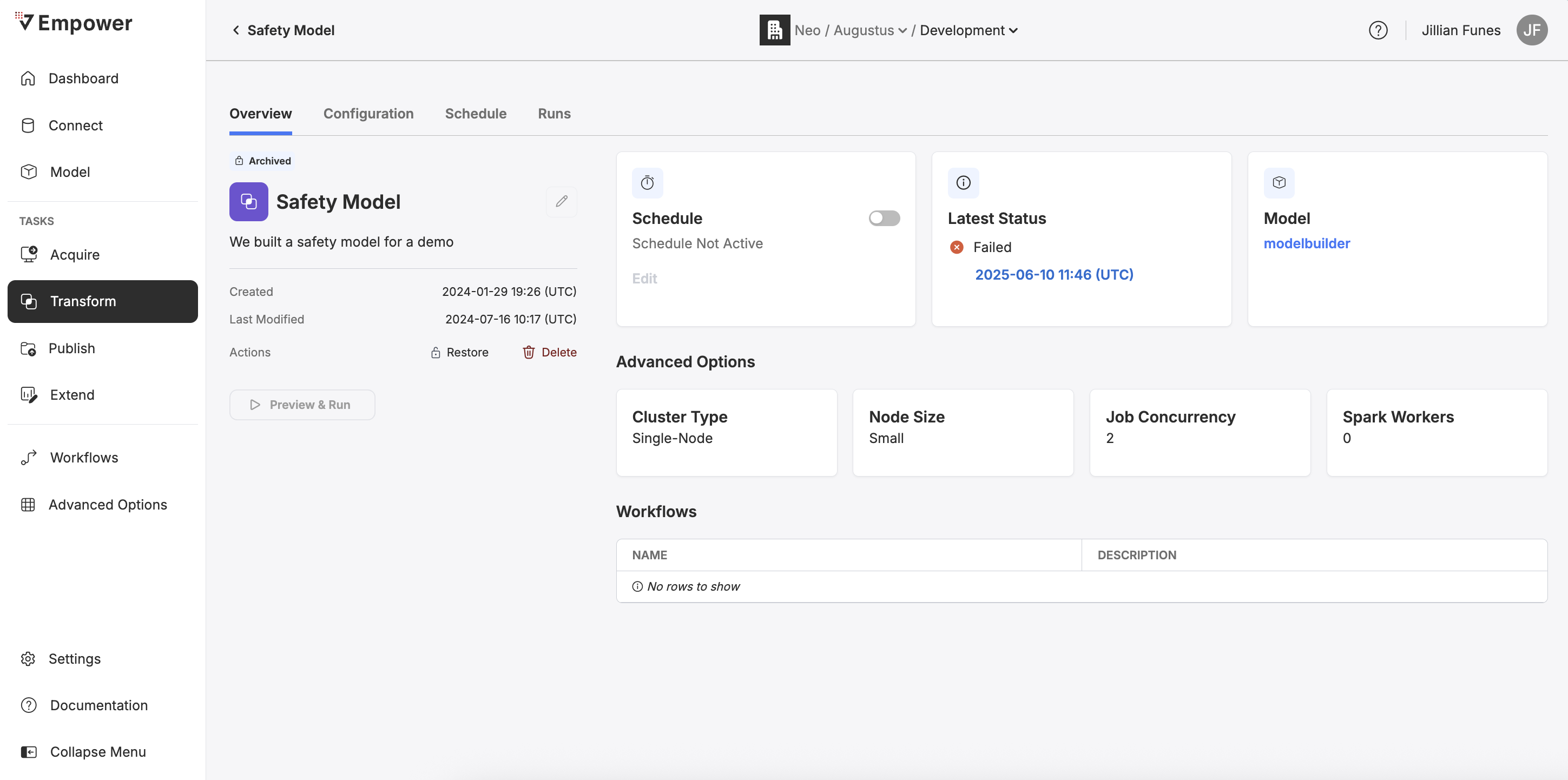
Click on the pencil icon next to the Task name to bring up the edit form where you can update the Task name, description, and advanced options.
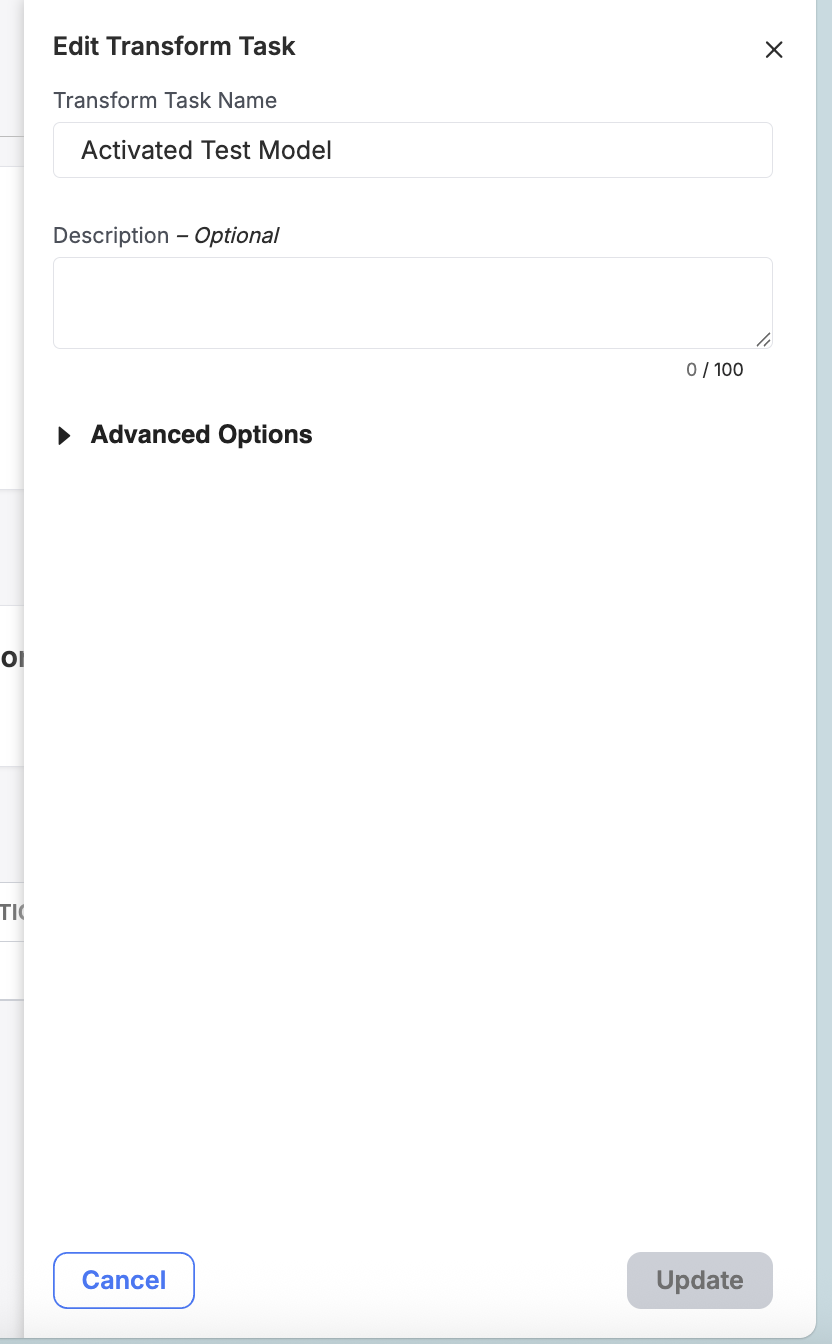
📘 INFO: Transformation Task Edit Restrictions
You can only ever modify the name and description of an Transformation Task. You will not be able to reselect an Transformation Task's associated model.
If you want a different model, create a new Transformation Task and associate the chosen model with it instead.
Deletion
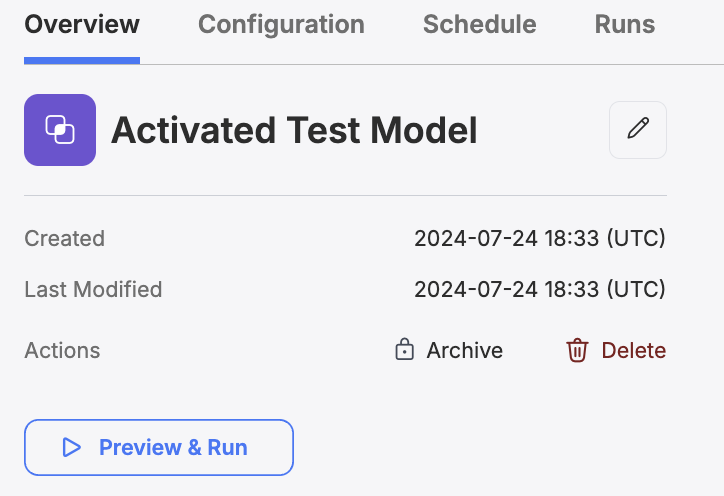
You can delete any existing Tranformation Task by clicking the Delete button from the Task overview tab. Doing so will bring up a menu with one option being to Delete the task.
A confirmation modal will pop up. You must confirm you wish to delete the task in order to complete the deletion process.
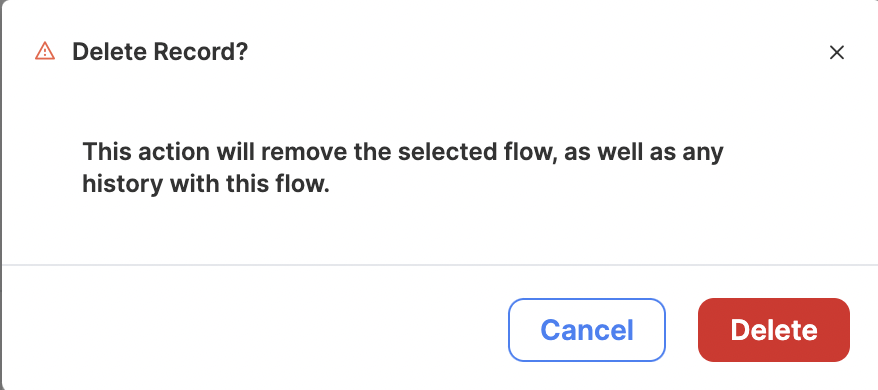
❗️ DANGER: Deletion is Permanent
Task deletion is a permanent action. Deleting a task will also remove the entire historical log of that task. You will not be able to reverse a task's deletion, so make sure you actually want to perform this action!
Scheduling and Triggering Tasks
To read about how to schedule and trigger Transformation Tasks or any other task type, visit Scheduling Data Tasks.
Configuration
Clicking on the name of a Task and then select the "Configuration" tab on any existing Transform Task to visit its configuration page..
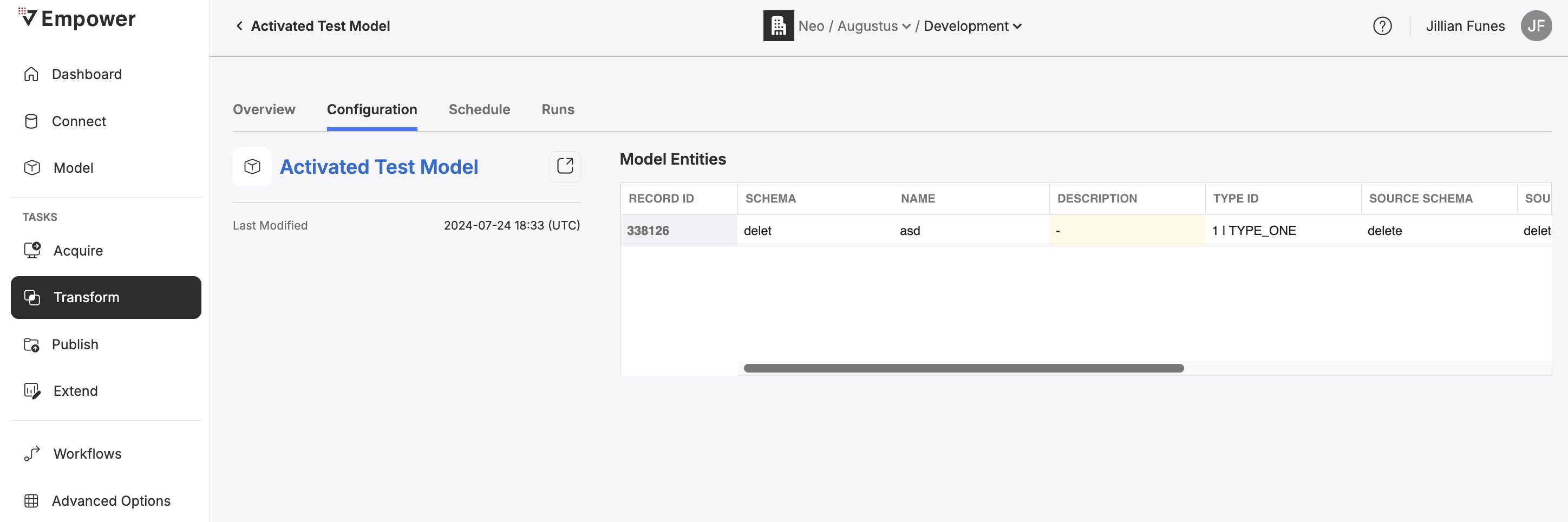
Selective Model Entity Refresh
From the configuration page, you can view and enable/disable the associated model and the Model Entities that will be built within the model associated with this task.
Enabling/disabling entities from the Task configuation tab only affects that Task allowing you to customize the schedule to the needs of specific entities.
Entities that are disabled at the model level are not able to be enabled at the Task level.
If an entity is active at the Task level but one or more of its dependencies are inactive, the refresh proceeds using the last available data for those inactive dependencies.
Additionally, you can click on the Model name to view and edit the Model's Entity Columns and Entity Dependencies.